Getting started
No account needed: install the app, press Go live, and send the link.
1. Install
- Windows 10 or 11 (64-bit): download the installer and run
BellionShare-Setup.exe. It installs the latest version for your user account (no admin rights needed) and adds Start menu and desktop shortcuts. The installer is code-signed (publisher: Martin Saul). The signature is new, so for a while Windows may still say "Windows protected your PC": choose More info, then Run anyway. Prefer no installer? Use the portable zip: unzip it anywhere and runblite-guard.exe. - Linux (Ubuntu 24.04, Mint 22 or newer, 64-bit): download the .deb, open a terminal in its folder and run
sudo apt install ./blite_*.deb, then start Bellion Share from your app menu. Bellion Share needs an X11 session; Wayland sessions aren't supported yet.
Bellion Share keeps itself up to date: when a new version is out it offers it in the app, and installing restarts it (and rejoins your call).
Closing the window keeps Bellion Share running in the tray, so share links still open it. Use the tray icon to open the window again or quit. Help > Start Bellion Share when I sign in starts it in the tray at sign-in.
2. Pick your name
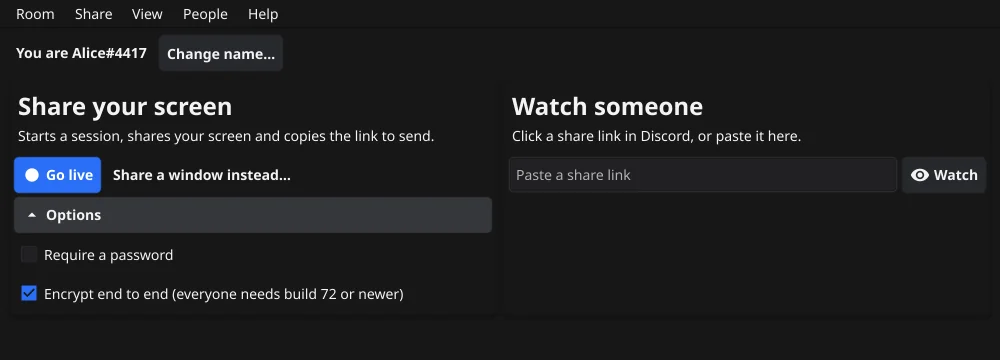
The top of the window shows who you are, for example Alice#4417. Press Change name... to set the name others see. The 4-digit tag after it comes from your identity key, a key the app creates on your computer, so two people can't pass as each other by picking the same name.
3. Share your screen
- Press Go live. Bellion Share starts a session, shares your main monitor (the one with the taskbar or panel) and copies the share link to your clipboard.
- Paste the link to your friends, for example in a Discord chat.
To share something else, press Share a window instead... and pick a monitor or a window. During the call the Share menu also offers a single monitor, a window, or all your screens combined, plus the resolution, frame rate and audio (see Features).
Under Options:
- Require a password: the session gets a password you choose. Without one, the session is open to anyone who has the link. Either way the link carries everything needed to join, so only send it to people you want in.
- Encrypt end to end (on by default): each sender encrypts its video and audio with keys that only people in the room get, so a TURN server passing them on can't read them. Everyone in the room needs build 72 or newer.
If you use Discord, you can also go live straight in your voice channel: see Discord. Until Discord approves the Bellion app, this works only for a few people added as testers.
4. Watch someone
Click the share link someone sent you. Your browser opens a page that hands the link to Bellion Share (on its first use it may ask whether to open the app). If nothing opens, make sure Bellion Share is installed and running, then click the link again.
You can also paste the link into Watch someone and press Watch. When you switch to Bellion Share with a share link on your clipboard, it offers a one-click button to watch that session.
You join watching only. To share your own screen too, press Go live in the call: everyone in a room can share at the same time.
5. In the call
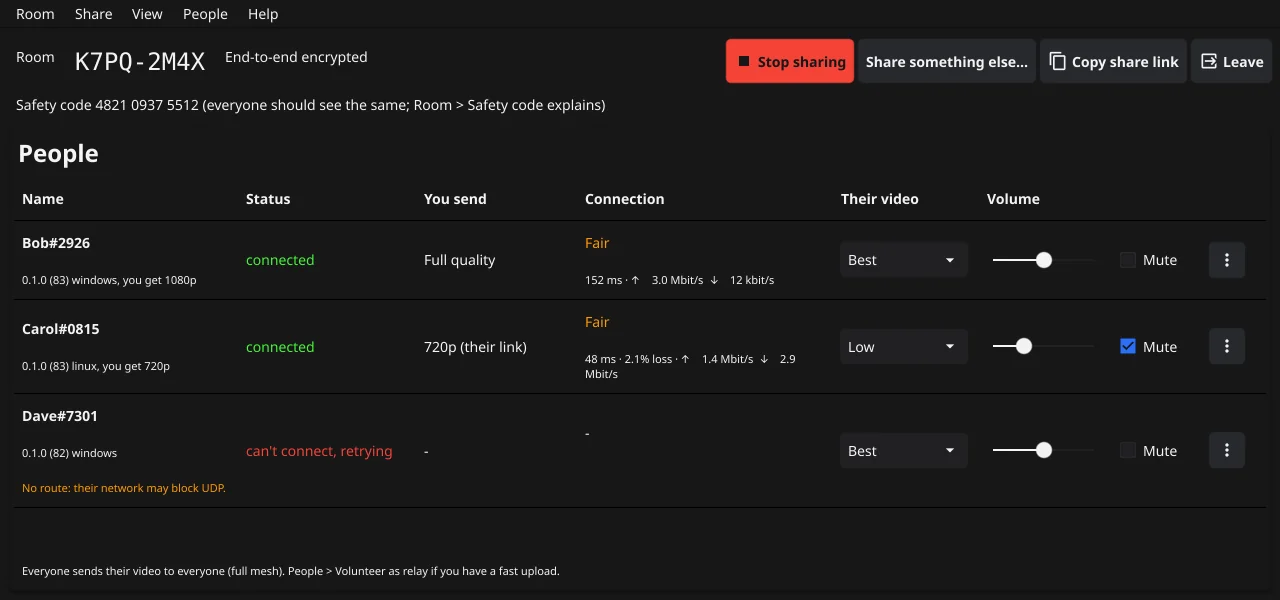
- Go live / Stop sharing starts or stops your share; Share a window... (or Share something else...) picks what you share.
- Copy share link copies the link again to invite more people.
- The safety code is the same for everyone when nobody is intercepting the connection. Read it aloud once to check (Room > Safety code...).
- Other people's screens open in their own windows, or all together in one window: see Watching.
- Leave ends your part in the call. You can rejoin with the link while the session is open; a session ends shortly after the last person leaves.