Discord integration
Bellion Share can follow the Discord voice channel you're in, so your friends in that channel find your stream without anyone pasting a link.
Not open to everyone yet. Discord is still reviewing the Bellion app. Until it approves it, Connect Discord only works for people added as testers, and there are only a few tester slots for now. Everything else in Bellion Share works without Discord.
Connect Discord
- Start the Discord desktop app on the same computer as Bellion Share.
- In Bellion Share, press Connect Discord.
- Approve Bellion in the Discord window that opens. This lets Bellion Share see which voice channel you are in, nothing else.
You only do this once per computer. If Discord isn't running, Bellion Share says so and shows the normal Go live and Watch buttons.
Go live in your voice channel
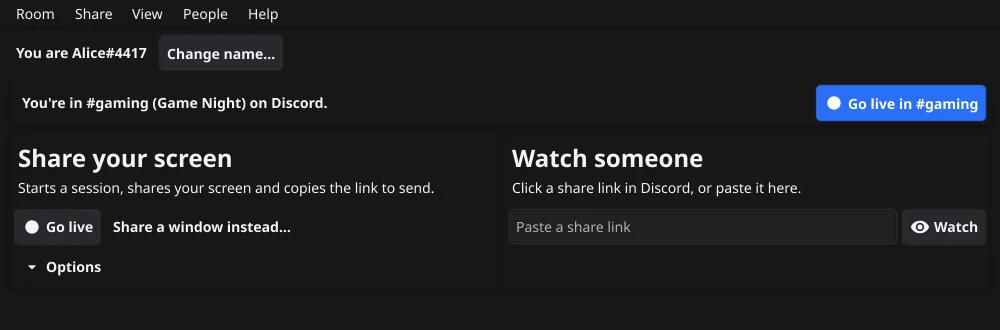
Join a voice channel in Discord. Bellion Share shows the channel and a Go live in #channel button. Pressing it starts a session tied to that channel, shares your screen and copies the share link as usual (the Options for a password and end-to-end encryption apply too).
Watch someone in your voice channel
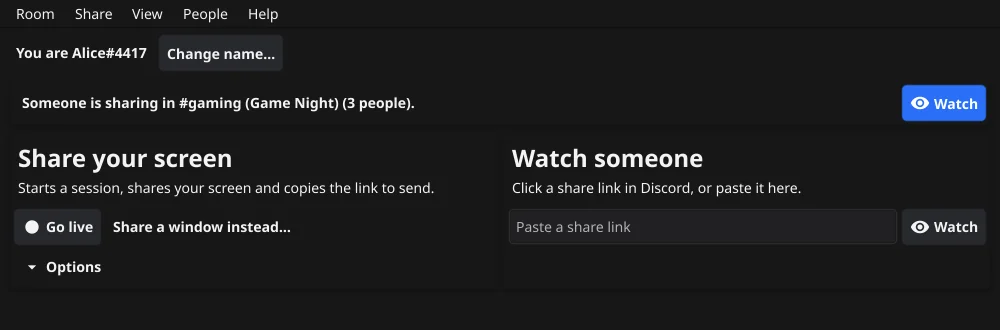
When someone in your voice channel has gone live, Bellion Share shows how many people are in that session and a Watch button. If the session has a password, it asks for it.
What Bellion sees
Bellion Share only reads which voice channel you're in (and the Discord server's name, to show it). Our server remembers which voice channel a live session is tied to, in memory, until the session ends. Bellion doesn't read your messages, servers or friends. The app keeps its Discord login on your computer. Details are in the Privacy Policy.
To disconnect, open Discord's User Settings > Authorized Apps and remove Bellion.
If it doesn't work
- "Discord isn't running on this computer": start the Discord desktop app (the browser version can't talk to other apps). Bellion Share looks for it again every 15 seconds.
- "Discord didn't allow it": until Discord approves the Bellion app for everyone, only accounts added as testers can connect it.
- No Go live button: join a voice channel first; text channels don't count.
- Share links work without Discord: paste one in any chat.